How to lock a remote VMware View session? I’ve had mixed results getting a consistent method for locking VDI workstation sessions using VMware View across different client types, so have endeavored to document all possible methods to help come up with a best practice.
Updated 4th September 2009: As per Resolved Issues in VMware View Manager 3.1.2
“In full-screen mode Windows special key combinations are not redirected to virtual desktops
In full-screen mode, View Client does not redirect Windows special key combinations (Windows+
From a Wyse Thin Client:
- Windows + L key
- CTRL + ALT + DEL
- Select “Windows Security” from the Start Menu and then Lock Computer
- Type the command: “rundll32 user32.dll,LockWorkStation”
From a Windows XP and Vista Client:
- CTRL + ALT + INSERT and then Lock Computer
- Select “Windows Security” from the Start Menu and then Lock Computer
- Type the command: “rundll32 user32.dll,LockWorkStation”
To be able to use the “Windows Security” method, ensure that the following Group Policy setting is Disabled.
Computer Configuration > Administrative Templates > Windows Components > Terminal Services > Remove Windows Security item from Start menu
To implement the rundll32 command…
- Create a Shortcut called “Lock Workstation”, giving it the command line of: rundll32 user32.dll,LockWorkStation
- Change the shortcut Icon to point to C:\WINDOWS\system32\shell32.dll,which contains a padlock
- You can also give this shortcut a hotkey, such as CTRL + ALT + L
Using a custom Hotkey:
- Hotkey mappings are only useable if the shortcut is located on the Desktop or in the Start Menu hierarchy.
- The hotkey combination MUST start with CTRL + ALT.
- Interestingly enough, when using the VMware View Client I could only get the hotkey mappings to work when the shortcut is placed on the All Users Desktop, but the shortcut itself works from anywhere.
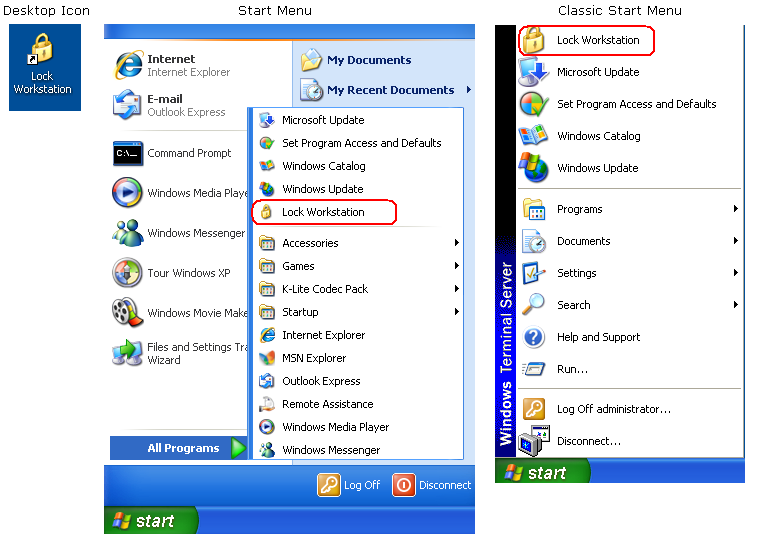
Implement the following VBScript as a Startup Script via the the following Group Policy setting:
Computer Configuration > Windows Settings > Scripts (Startup/Shutdown) > Startup
Option Explicit
Dim strShortcutLocation
‘
‘ Set the location of the shortcut:
‘ AllUsersStartMenu = All Users Start Menu
‘ AllUsersDesktop = All Users Desktop
‘ MyStartMenu = The Users’ Start Menu
‘ MyDesktop = The Users’ Desktop
‘
strShortcutLocation = “AllUsersDesktop”
Call CreateShortcut(strShortcutLocation)
strShortcutLocation = “AllUsersStartMenu”
Call CreateShortcut(strShortcutLocation)
WScript.Quit(0)
Sub CreateShortcut(strShortcutLocation)
Dim objShell, objShtCut, strSystemRoot, blnCreateShortcut
Set objShell = WScript.CreateObject(“WScript.Shell”)
blnCreateShortcut = True
Select Case lcase(strShortcutLocation)
Case lcase(“AllUsersStartMenu”)
strShortcutLocation = objShell.SpecialFolders(“AllUsersStartMenu”)
Case lcase(“AllUsersDesktop”)
strShortcutLocation = objShell.SpecialFolders(“AllUsersDesktop”)
Case lcase(“MyStartMenu”)
strShortcutLocation = objShell.SpecialFolders(“StartMenu”)
Case lcase(“MyDesktop”)
strShortcutLocation = objShell.SpecialFolders(“Desktop”)
Case Else
blnCreateShortcut = False
End Select
If blnCreateShortcut Then
strSystemRoot = objShell.ExpandEnvironmentStrings(“%SYSTEMROOT%”)
Set objShtCut = objShell.CreateShortcut(strShortcutLocation & “\Lock Workstation.lnk”)
objShtCut.TargetPath = strSystemRoot & “\system32\rundll32”
objShtCut.Arguments = “user32.dll,LockWorkStation”
objShtCut.WorkingDirectory= strSystemRoot
objShtCut.IconLocation = strSystemRoot & “\system32\shell32.dll” & “,47”
objShtCut.HotKey = “CTRL+ALT+L”
objShtCut.Save()
Set objShtCut = Nothing
End If
Set objShell = Nothing
End Sub
So in conclusion I believe that providing an icon called “Lock Workstation” that can also be triggered by a common Hotkey combination, such as CTRL + ALT + L, is the best way to provide users with a consistent method for all situations.