Installing, Configuring, Securing and Using MDT Webservices – Part 3

In Part 1 we walked through the installation and configuration of Deployment Webservices.

In Part 2 we walked through securing the Webservice.

In this part I will demonstrate how to use the Webservice via a PowerShell script to securely move a computer object during the operating system deployment (OSD) task sequence using Microsoft Deployment Toolkit (MDT).

To achieve the end result we need to:

  • Create some deployment share rules in MDT (CustomSettings.ini)
  • Add two “Run PowerShell Script” tasks to the Task Sequence
  • Download and place the PowerShell Script into the deployment share Scripts folder

Read more

Installing, Configuring, Securing and Using MDT Webservices – Part 2

In Part 1 we walked through the installation and configuration of Deployment Webservices. In this part we will focus on securing the Webservice.

There are five (5) main areas that I focus on to lock down the Webservice, and I’ll include two (2) optional areas for consideration:

  1. Use Request Filtering, which is basically what the old URL Scan morphed into from IIS 7 (Windows 2008) and above. Request Filtering gives a tighter level of control over the settings and where they are applied than URL Scan ever did.
  2. Authentication – Disable anonymous authentication. That should be a no-brainer!
  3. Authorization Rules – Only allow specific users access.
  4. Changing the authenticatedUserOverride serverRuntime setting to UseWorkerProcessUser. IIS 7.5 (Windows 2008 R2) and above allows us to configure IIS so that the worker process identity is used for accessing resources, such as the file system, whilst the authenticated user is only used for authorization purposes. This means that you only need to set NTFS permissions for the worker process identity.
  5. Setting NTFS Permissions on the DeploymentWebservice folder for the worker process identity.
  6. Optionally, you can also exclude some of the higher risk AD Functions.
  7. Optionally, you can also SSL enable the site with a certificate.

Read more

Installing, Configuring, Securing and Using MDT Webservices – Part 1

This will be a three part article on installing, configuring, securing and using Maik Koster’s Deployment Webservice.

I’m a massive fan of Microsoft Deployment Toolkit (MDT) and use it for all customer deployments that don’t already have a modern and/or mature deployment model.

The Deployment Webservice is required to complement MDT for two main reasons:

  1. The Active Directory Net Framework classes are NOT supported in WinPE, which means that WinPE does not support the use of ADSI. So when you rebuild a device/image, you are unable to easily automate moving of the computer object to a build/staging OU before the Domain Join process. This is important when there is an existing object in Active Directory because you don’t want it to join to an existing object where unwanted Group Policy Objects may apply, that may in-turn break the build process, or at least make it unreliable.
  2. The MDT task sequence does not run as a Domain User with permissions to easily achieve this task. Whilst in MDT you can run a script as a different user, I don’t like using those configuration fields, as it means my task sequences end up being hard coded with credentials. I wanted a far more flexible approach so that I could pass it existing variables or derive them directly from the Task Sequence variables.

Read more

Script to modify the defaultSecurityDescriptor attribute on the Group-Policy-Container schema class object

Last week I published an article about the changes in the behavior of Group Policy processing after the deployment of security update MS16-072 under KB3163622. It included a script to assist with the remediation of Group Policy permissions: Script to report on and remediate the Group Policy security change in MS16-072.

Of course that’s not where it ends. What about new Group Policies? Do you create a procedure that requires you to add “Domain Computers” with Read permission every time you create a new Group Policy Object (GPO)? No…of course not!

What we need to do now is change the defaultSecurityDescriptor attribute on the Group-Policy-Container schema class object so that new GPOs are created with Domain Computers having Read permissions by default. Microsoft didn’t released an official script or method to do this, so here’s the next best thing.

Read more

Script to report on and remediate the Group Policy security change in MS16-072

Computer can read again!

On June 14th 2016 Microsoft released security update MS16-072 under KB3163622 that changes the behavior of Group Policy processing so that user group policies are now retrieved by using the machine’s security context instead of the user’s security context. This is a by-design behavior change from Microsoft to protect computers from a security vulnerability.

Update 23/06/2016: Microsoft finally released an official response to this patch via the Directory Services team: Deploying Group Policy Security Update MS16-072 \ KB3163622

This is a problem for people that implement security filtering on their Group Policy Objects (GPOs), as it removes the default Authenticated Users group not only from the “Apply group policy” permission, but also from the “Read” permission.

Read more

Netlogon parser for Message Analyzer

The Microsoft Message Analyzer is a very cool tool which helps us read and analyse a number of different log and trace file formats. In fact Message Analyzer is the replacement for the old Network Monitor (AKA Netmon) tool. Brandon Wilson from Microsoft wrote a parser for the NetLogon.log files. Here are the references to Brandon’s TechNet blogs: … Read more

Script to Create a Summary Overview and Full Report of all Contact Objects in a Domain

This PowerShell script is one of the most comprehensive you will find that provides a thorough overview and full report of all contact objects in a domain. It is the culmination of many Active Directory audit and reviews and therefore contains valuable input from many customers.

A lot of thought has been put into the logic within this script to help an organisation understand:

  • Contacts that are mail-disabled
  • Contacts that are ADFS Farm objects, which are Contact objects located under the certificate sharing container.
  • Contacts that are UM Integration objects
  • Contacts that are conflicting/duplicate objects (name contains CNF:)
  • Contacts that have expired
  • Contacts that have no manager set
  • Contacts that have been left in the default Users container (CN=Users)

FYI:

  • Mail-enabled contacts are derived from the targetAddress, proxyAddresses, legacyExchangeDN, and mailNickName attributes.

Read more

Script to Create an Overview and Full Report of all Group Objects in a Domain

This PowerShell script is one of the most comprehensive you will find that provides a thorough overview and full report of all group objects in a domain. It is the culmination of many Active Directory audit and reviews and therefore contains valuable input from many customers.

A lot of thought has been put into the logic within this script to help an organisation understand:

  • A breakdown of each group type (category and scope) that have been created
  • Groups with no members
  • Groups that are flagged as critical system objects
  • Groups that are protected objects (AdminSDHolder) where their adminCount attribute is set to 1
  • Groups that are conflicting/duplicate objects (name contains CNF: and/or sAMAccountName contains $Duplicate)
  • Groups that are mail-enabled
  • Distribution groups that are mail-disabled
  • Groups that are Unix-enabled
  • Groups that have expired
  • Groups with SID history
  • Groups with no Manager (managedBy)
  • The non-“Microsoft” default groups that have been left in the default Users container

FYI:

  • Mail-enabled groups are derived from the proxyAddresses, legacyExchangeDN, mailNickName, and reportToOriginator attributes, where reportToOriginator must be set to TRUE. This is not well documented.
  • Unix-enabled groups are derived from the gidNumber, msSFU30Name, and msSFU30NisDomain attributes.

Read more

Script to Create an Active Directory Schema Update Report

This PowerShell script was written by the awesome Ashley McGlone (AKA Goatee PFE) and published to the TechNet Script Center. It was also blogged on the Scriting Guy TechNet site. However, it did need some updates to keep up with the newer schema updates as well as adding the SCCM (ConfigMgr) versions. As Ashley has not updated it since 19th September 2013 I thought I’d update it myself and post it here until he gets the time to update the script and publish an updated version.

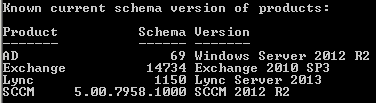
It will report the versions of the following products as per the sample screen shot from one of my customers:

  • Active Directory
  • Exchange
  • Lync
  • System Center Configuration Manager (SCCM) – ConfigMgr

Schema Version of Products

Please ensure you read the Scripting Guy’s blog titled “How to Find Active Directory Schema Update History by Using PowerShell“, which provides some great documentation on the script as well as some valuable comments that have helped to implement the updates.

The original script can be found here on the TechNet Script Center: PowerShell Active Directory Schema Update Report

Read more

Script to Create an Overview of all Computer Objects in a Domain

This PowerShell script will provide an overview and count of all computer objects in a domain based on Operating System and Service Pack. It helps an organisation to understand the number of stale and active computers against the different types of operating systems deployed in their environment.

Computer objects are filtered into 4 categories:

  • Windows Servers
  • Windows Workstations
  • Other non-Windows (Linux, Mac, etc)
  • Windows Cluster Name Objects (CNOs) and Virtual Computer Objects (VCOs)

A Stale object is derived from 2 values ANDed together:

  • PasswordLastChanged > $MaxPasswordLastChanged days ago
  • LastLogonDate > $MaxLastLogonDate days ago

By default the script variable for $MaxPasswordLastChanged is set to 90 and the variable for $MaxLastLogonDate is set to 30. These can easily be adjusted to suite your definition of a stale object.

The Active objects column is calculated by subtracting the Enabled_Stale value from the Enabled value. This gives us an accurate number of active objects against each Operating System.

Read more