The Maptek User Support Tool to Help Manage Vulcan Support Challenges

I would like to introduce you to a PowerShell tool I built in 2023 and have been continually developing and adding features until this release. If you or your customer runs Maptek Vulcan, especially in a virtualised desktop platform from Vendors such as Citrix, Omnissa, Parallels, Dizzion, Microsoft and Amazon, you may want to consider using this tool to assist users with the support challenges for Maptek products, specifically Vulcan and BlastLogic. It primarily empowers the users with the ability to set, change and verify required Vulcan variables, ODBC connections, and mapped drives. It also facilitates setting the TEMP & TMP variables to a RAM Disk (if present), for the current process only, before starting Vulcan.

The Maptek products aside, this tool can be used as a template and modified to help enhance the delivery and experience for any application.

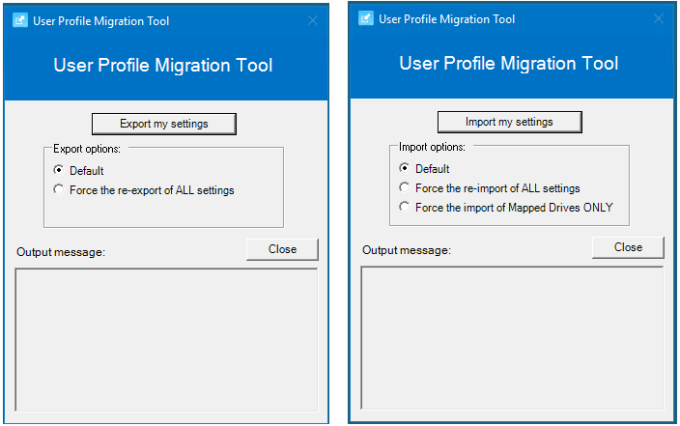
The following screen shot shows the user interface in two forms. Can you spot the differences? I will explain below what this means and all the functions the tool provides.

Maptek User Support Tools

Background

Maptek Vulcan is specialised 3D mining software used for geological modelling, mine design, and mine planning. It has been widely used in the mining industry since the mid 1980s by Geologists, Surveyors, Mine and Geotechnical Engineers to analyse, visualise, and optimise mineral resources. It is also used for resource evaluation, feasibility studies, and operational planning. It integrates with many other mining applications.

From an IT Support point of view, it’s a beast of an application that has several limitations due to legacy code and settings that creates challenges for users when deployed into a Virtual Desktop platform. It’s written to run on high end laptops and workstations where users are not locked down too heavily. So when you add Cyber policies and locked down devices and desktops, it can be challenging for users to configure the software as needed without assistance.
Read more

The Micromine Alastri Hub Launcher Tool that leverages a RAM Disk for Temporary Data

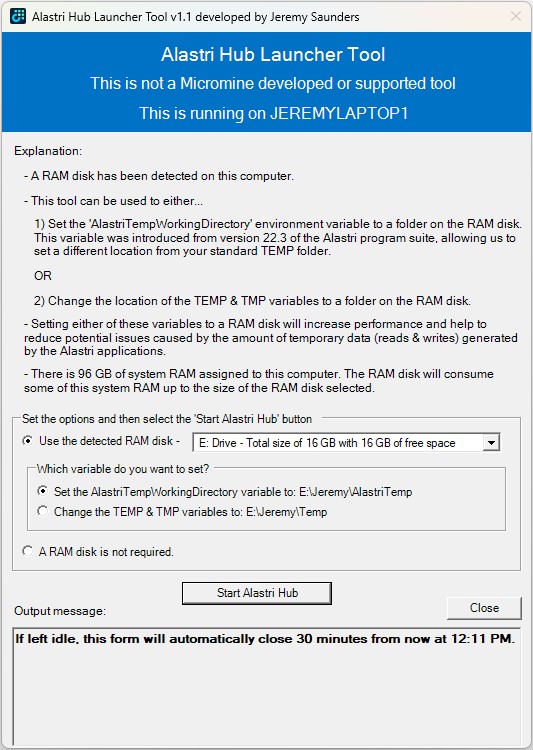
I would like to introduce you to a PowerShell tool I originally created in early 2024, which was in the research and planning stage for about 12 months previous to that whilst I was finding a suitable RAM Disk solution. If you or your customer runs Micromine Alastri Software, especially in a virtualised desktop platform from Vendors such as Citrix, Omnissa, Parallels, Dizzion, Microsoft and Amazon, you may want to consider using this tool to help increase performance and reduce potential issues caused by the amount of temporary data (reads & writes) generated and consumed by the Alastri applications.

Alastri Hub Launcher

Read more

Silently Installing and Automating the Arsenal Image Mounter (AIM) RAM Disk Feature

Updated 17th November 2025

I previously wrote about The best free for commercial use RAM Disk that works perfectly with Desktop Virtualisation. This is a follow on from that article that will focus on:

  • The installation of Arsenal Image Mounter (AIM)
  • The automation for the creation of a RAM Disk
  • The challenges I experienced with the creation of the RAM Disk
  • How to deploy it
  • The scripts themselves

Here are further articles to demonstrate the use cases:

Read more

Restoring the NVIDIA Control Panel and Tools after the Appx Package Change

Updated 12th August 2024:

  • Post install code snippets updated
  • Article wording updated

With the move from the Standard driver model to the DCH (Declarative Componentized Hardware) driver model implemented from GRID 15.0 (Windows driver version 527.41) and above, the NVIDIA Control Panel app is now distributed through the Microsoft Store as an Appx Package. Even though the base Appx Package is added as part of the driver package install, it might fail to be installed per user if the Microsoft Store is disabled, the system is not connected to the Internet, or installation of apps from the Microsoft Store is blocked by your system settings. Other than the Administrative user that installed the driver, this is not installed by default for other users using Windows Server 2019 and Windows 10 LTSC 2019 (version 1809).

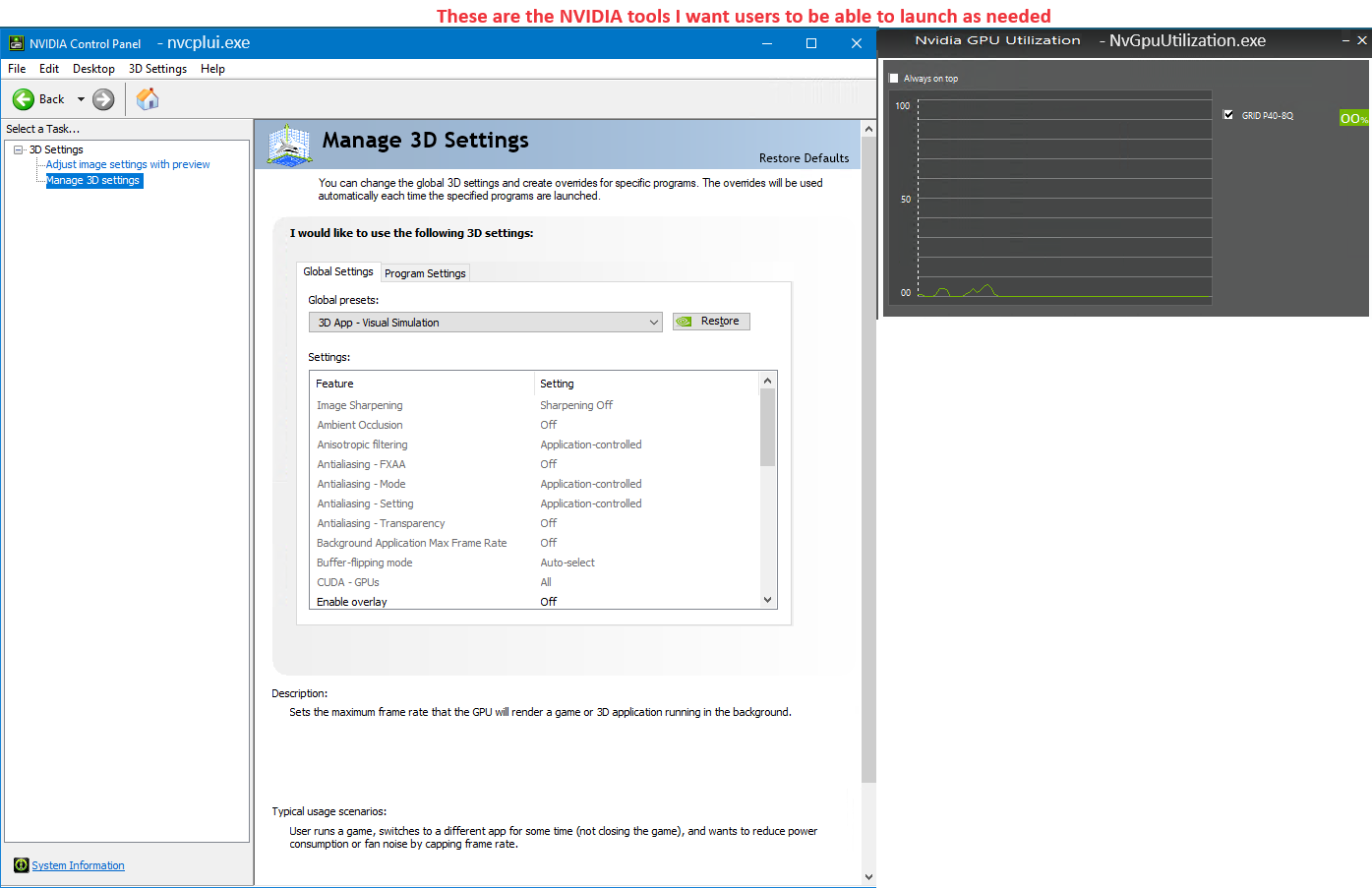
Furthermore, even when the Appx Package is registered, users and local Administrators cannot directly launch the nvcplui.exe and NvGpuUtilization.exe tools.

NVIDIA Control Panel and Tools

Read more

The Citrix PVS Target Device Driver is a SCSI Adapter Bully

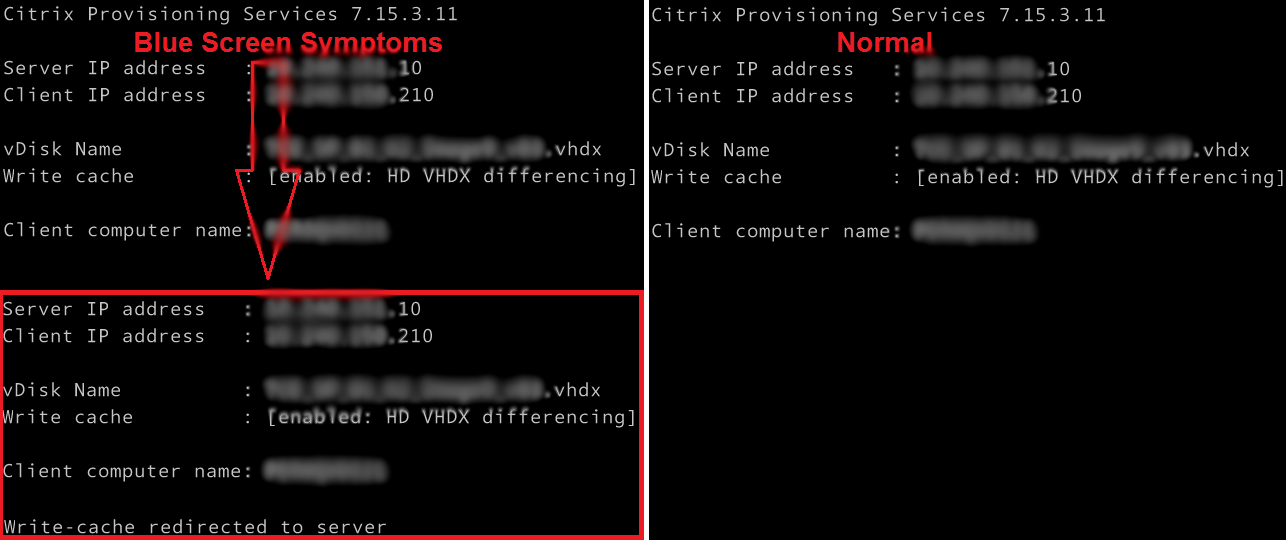
Working on a Citrix upgrade project a few years ago I was continually getting a blue screen when a Citrix PVS image booted. The symptom was obvious during the boot process. It was as if there were two NICs or the image was trying to load twice. PVS write-cache was also incorrectly being redirected to the server.

PVS Target Agent Blue Screen Symptoms

I checked and rechecked all the obvious suspects, such as ghosted NICs and other devices, old DHCP information, antivirus, etc. Everything looked good. It really did not make a lot of sense. I then stripped all the apps and tools out of the build and it worked! So what was I doing wrong?

Read more

ESRI ArcGIS Pro and Desktop License Type and Program Selector User Interfaces

Updated 17th July 2024

Here are two awesome User Interfaces (UI’s) I built that will compliment any ESRI ArcGIS Pro (AGP) and/or ArcGIS Desktop (AGD) deployment. More specifically from my point of view, they have been developed with a Citrix Published Application, VMware Horizon, Remote Desktop, VDI and AVD deployment in mind, giving the users the ability to easily switch licensing types and launching the different programs and tools, making life much easier for them.

ArcGIS Pro Challenges

  • Changing the licensing is not as simple as it seems, especially when launching it as a published application. This is because you have to change it from within the program once launched; and then the program needs to restart for the new licensing type to work. What that means is that the ArcGISPro.exe process will terminate and restart. Whilst that happens a published application session may log itself off, as there are no processes running to keep it open. The code in this UI will manipulate the user registry values before starting ArcGIS Pro, and therefore setting the licensing type as required. I call this Self-Service by allowing the users to switch License Levels/Types on demand!
  • Having a single interface allowed me to integrate other tools and processes as requested by users over time that could all be associated with ArcGIS Pro. For example, users wanted an easy way to start File Explorer in the same session. Let’s make it easy for the users to do their work! That’s my job!
  • Update on 17th July 2024 for Python code changes I completed in back February:
    • Due to some corporate licensing challenges with ArcGIS Pro, the ArcGIS Pro License Selector has been updated for the following reasons:
    • It defaults to a Basic license, regardless of what you last used. If you need to use a Standard or Advanced license type, please select it before launching ArcGIS Pro. This behaviour can be changed back by using the AlwaysDefaultToBasic script variable as documented below.
    • I have added a “Reset Extensions” checkbox, that is selected by default. This will remove any Extensions you may have selected in your previous session, as the licensing for some of these Extension is also limited. You have the option here of deselecting it if you wish to continue to use previously selected Extensions in your new session. This behaviour can be changed back by using the AlwaysResetExtensions script variable as documented below.
    • Unfortunately, neither of these settings are managed by ESRI at an enterprise level, so I’ve enhanced this tool to assist in reducing the usage of the more advanced licensing options.
    • I have also improved the flow of the Python code.

ArcGIS Desktop Challenges

  • In a large enterprise deployment, setting the licensing model can be a pain. This is done via a user environment variable. So you could use Group Policy Preferences to target them based on AD Security Groups. But that adds an administrative overhead, and users must then log support tickets via the Service Desk, which creates unnecessary overhead and lost time whilst they wait for it to be actioned. That’s not agile, and doesn’t allow users to change their license type to suite their needs. The code in this UI will manipulate the user environment variable before starting the ArcGIS Desktop program of choice, such as ArcMap or ArcCatalog, and therefore setting the licensing type as required. Again, I call this Self-Service by allowing the users to switch License Levels/Types on demand!
  • There are way too many Start Menu items to publish, which is not a neat and tidy way to present it, so why not just present it via a single UI?
  • Having a single interface allowed me to integrate all the common ArcGIS Desktop programs and other tools and processes as requested by users over time that could all be associated with ArcGIS Desktop. For example, users wanted an easy way to start File Explorer in the same session, and they wanted a way to install specific Python modules that are not part of the default Python install. Again, let’s make it easy for the users to do their work! That’s my job.
  • ArcGIS Administrator notes:
$acl= get-acl -path "HKLM:\SOFTWARE\Wow6432Node\ESRI"
$inherit = [system.security.accesscontrol.InheritanceFlags]"ContainerInherit, ObjectInherit"
$propagation = [system.security.accesscontrol.PropagationFlags]"None"
$rule=new-object system.security.accesscontrol.registryaccessrule "USERS","FullControl",$inherit,$propagation,"Allow"
$acl.addaccessrule($rule)
$acl|set-acl
 
$acl= get-acl -path "HKLM:\SOFTWARE\Wow6432Node\Classes\CLSID\{E6BDAA76-4D35-11D0-98BE-00805F7CED21}"
$inherit = [system.security.accesscontrol.InheritanceFlags]"ContainerInherit, ObjectInherit"
$propagation = [system.security.accesscontrol.PropagationFlags]"None"
$rule=new-object system.security.accesscontrol.registryaccessrule "USERS","FullControl",$inherit,$propagation,"Allow"
$acl.addaccessrule($rule)
$acl|set-acl

Read more

Sentinel LDK License Configuration Helper Service

Introducing the Sentinel LDK License Configuration Helper Service. This new tool I’ve created uses registry values and/or XML files to configure the client-side Sentinel LDK License Manager (hasplms) service, which updates the configuration in the License Manager Configuration File (hasplm.ini) found under the “C:\Program Files (x86)\Common Files\Aladdin Shared\HASP” folder on a 64-bit Windows machine. It achieves the same outcome as using the Configuration option from the Sentinel Admin Control Center (ACC) web interface via http://localhost:1947.

Read more